Installer Options
To access the Installer options menu:
-
Touch the Menuicon (3 horizontal lines at bottom of display)
-
Scroll down and touch Thermostat Information.
-
Write down the date code from that screen. Then touch the left arrow at top of display to go to previous screen.
-
Scroll down until “Installer Options” is shown. Touch Installer Options and enter date code.
How to find more options
-
Touch the Menu button.
-
Scroll up and down for more options.
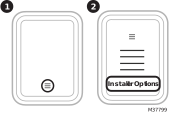
Installer Options Menu
Installer Setup
Setup thermostat.
Installer Test
-
Turn on or off Heat stages
-
Turn on or off Cool stages
-
Turn on or off Em Heat stage
-
Turn on or off IAQ equipment
-
See equipment Run Time
-
See the sensor temperature reading if a 10K/20K pipe sensor is used for a Fan Coil Unit
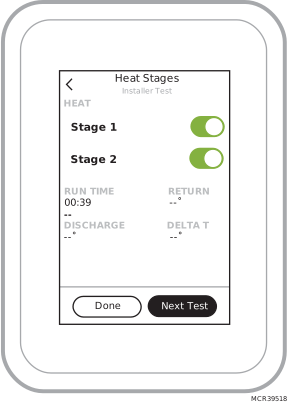
If discharge and return sensors (RATS & DATS) are used with T10+ and EIM, the display shows these readings and the delta during installer test.
Dealer Information Setup
Enter installer company name, phone number, website, and email. This allows the contractor’s contact information to be displayed if the customer receives an alert or reminder.
Devices & Sensors
-
Add a wireless indoor or outdoor sensor
-
Identify a wireless indoor or outdoor sensor
Thermostat:
-
Temperature & humidity readings
-
Network name
-
IPV54 address
-
Change room name
Equipment Interface Module:
-
Firmware version
-
Wireless signal strength
Indoor Air Sensor:
-
Firmware version
-
Battery strength
-
Wireless signal strength
-
Temperature and Humidity readings
-
Occupied or unoccupied (detection of motion in room)
Options:
-
Rename sensor (select Room name)
-
Use Motion (Offers the option of not using motion sensing from one or more sensors when Active Rooms is selected in the priority menu.)
-
Motion Sensitivity (HIGH = Triggered when very little motion is detected, MEDIUM = triggered when a moderate amount of motion is detected, LOW = triggered only when a lot of motion is detected).
-
Delete (Removes that sensor from the thermostat).
-
Blink lights (Will make the light on the indoor sensor you selected blink to help identify which sensor is matched with each name in the sensor menu.)
Outdoor Air Sensor:
-
Firmware version
-
Battery strength
-
Wireless signal strength
-
Temperature and Humidity readings
-
Delete (option only shown in the "Devices & Sensors" menu when accessed via "Installer options" menu).
Thermostat Information
-
MAC Address
-
Date Code
-
Model number
-
Build date
-
Collection Version
-
Bootloader Version
-
Application Version
-
WiFi Bootloader Version
-
WiFi Application Version
-
RedLINK Application Version
Reset
-
Reset Schedule
-
Delete all sensors
-
Reset HomeKit
-
Factory Reset
-
Reset WiFi?